Gacfox's Blog
文本与字体
显示文字是游戏的基本需求,UI标签、对话文本等,处处离不开字体渲染。MonoGame框架中,文本绘制主要通过SpriteFont实现,它的思路继承了XNA的经典字体烘焙方案,即构建期TrueType字体会被光栅化为纹理图集,运行时像绘制图片一样绘制文字。当然,这套方案对于英文是没有任何问题的,许多其它游戏引擎也都采用了类似的文本绘制方式,但对中文来说情况就不同了,中文汉字实在太多了,将所有汉字全部光栅化开销不小,产出的纹理图集也会非常庞大,预先光栅化所有汉字并非最佳方案。
这篇笔记我们将先介绍经典的字体绘制方法,然后介绍适合中文的动态字体渲染扩展库。
SpriteFont
和纹理、音频一样,MonoGame中字体也需要经过MGCB内容管道处理和加载,不过它的原始资源不是字体文件本身,而是一个.spritefont描述文件,它是XML格式的,其中声明了用哪个字体文件、多大字号、烘焙哪些字符等配置信息。
要创建.spritefont描述文件,我们可以在MGCB Editor中右键点击Content项目,选择Add -> New Item...,然后选择SpriteFont Description,点击Create后,MGCB Editor会帮我们创建一个默认的.spritefont描述文件模板,我们可以用代码编辑器编辑其中的信息。
下面是一个.spritefont描述文件的例子,其中<FontName>配置了Consolas字体的相关信息。如果你使用的是单独的字体文件,也可以将字体文件放到Content目录下或其子目录中,例如放置字体文件Content/Fonts/myfont.ttf,在<FontName>中配置Fonts/myfont即可(注意这里不要写扩展名)。MonoGame的内容管道支持TrueType和OpenType(即.ttf和.otf)格式的字体文件,但不支持.woff、.woff2、.eot等格式。
<?xml version="1.0" encoding="utf-8"?>
<!--
This file contains an xml description of a font, and will be read by the XNA
Framework Content Pipeline. Follow the comments to customize the appearance
of the font in your game, and to change the characters which are available to draw
with.
-->
<XnaContent xmlns:Graphics="Microsoft.Xna.Framework.Content.Pipeline.Graphics">
<Asset Type="Graphics:FontDescription">
<!--
Modify this string to change the font that will be imported.
-->
<FontName>Consolas</FontName>
<!--
Size is a float value, measured in points. Modify this value to change
the size of the font.
-->
<Size>16</Size>
<!--
Spacing is a float value, measured in pixels. Modify this value to change
the amount of spacing in between characters.
-->
<Spacing>0</Spacing>
<!--
UseKerning controls the layout of the font. If this value is true, kerning information
will be used when placing characters.
-->
<UseKerning>true</UseKerning>
<!--
Style controls the style of the font. Valid entries are "Regular", "Bold", "Italic",
and "Bold, Italic", and are case sensitive.
-->
<Style>Regular</Style>
<!--
If you uncomment this line, the default character will be substituted if you draw
or measure text that contains characters which were not included in the font.
-->
<!-- <DefaultCharacter>*</DefaultCharacter> -->
<!--
CharacterRegions control what letters are available in the font. Every
character from Start to End will be built and made available for drawing. The
default range is from 32, (ASCII space), to 126, ('~'), covering the basic Latin
character set. The characters are ordered according to the Unicode standard.
See the documentation for more information.
-->
<CharacterRegions>
<CharacterRegion>
<Start> </Start>
<End>~</End>
</CharacterRegion>
</CharacterRegions>
</Asset>
</XnaContent>
创建好.spritefont并将其加入Content.mgcb后,执行构建时,MGCB就会从系统找到指定字体,把<CharacterRegions>中声明的字符范围以指定字号光栅化成一张纹理图集,连同每个字符的位置、间距信息打包成.xnb。运行时加载资源后,绘制文字就和绘制纹理没有区别了,且无需在玩家主机上安装字体。
DrawString 绘制文本
SpriteBatch的DrawString方法和Draw方法类似,也有大量重载方法,其中最完整是下面这个。
_spriteBatch.DrawString(
    spriteFont: _font,                  // SpriteFont
    text: "Hello MonoGame",             // 要绘制的文本内容,支持string或StringBuilder类型
    position: new Vector2(400, 300),    // 绘制位置
    color: Color.White,                 // 颜色叠加(着色)
    rotation: MathHelper.PiOver4,       // 旋转角度(弧度,绕 origin)
    origin: new Vector2(0, 0),          // 原点,是旋转和缩放中心,也是position的锚点
    scale: new Vector2(2f, 2f),         // 缩放因数
    effects: SpriteEffects.None,        // 翻转效果
    layerDepth: 0.5f                    // 层深度,前后排序用
);
这些参数和意义和Draw如出一辙,这里就不赘述了。
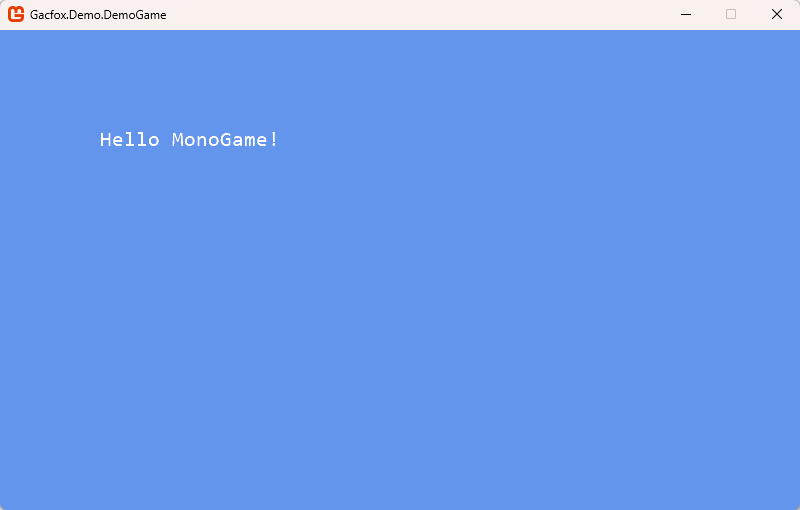
下面例子代码中,我们在Game1类里加载已经构建好的SpriteFont资源,并绘制白色的Hello MonoGame!到屏幕上。
using Microsoft.Xna.Framework;
using Microsoft.Xna.Framework.Graphics;
using Microsoft.Xna.Framework.Input;

namespace Gacfox.Demo.DemoGame;

public class Game1 : Game
{
    private GraphicsDeviceManager _graphics;
    private SpriteBatch _spriteBatch;
    private SpriteFont _font;

    public Game1()
    {
        _graphics = new GraphicsDeviceManager(this);
        Content.RootDirectory = "Content";
        IsMouseVisible = true;
    }

    protected override void Initialize()
    {
        base.Initialize();
    }

    protected override void LoadContent()
    {
        _spriteBatch = new SpriteBatch(GraphicsDevice);
        _font = Content.Load<SpriteFont>("Consolas");
    }

    protected override void Update(GameTime gameTime)
    {
        if (GamePad.GetState(PlayerIndex.One).Buttons.Back == ButtonState.Pressed || Keyboard.GetState().IsKeyDown(Keys.Escape))
        {
            Exit();
        }
        base.Update(gameTime);
    }

    protected override void Draw(GameTime gameTime)
    {
        GraphicsDevice.Clear(Color.CornflowerBlue);

        _spriteBatch.Begin();
        _spriteBatch.DrawString(_font, "Hello MonoGame!", new Vector2(100, 100), Color.White);
        _spriteBatch.End();

        base.Draw(gameTime);
    }
}
运行程序后,效果如下图所示。
MeasureString 测量文本渲染尺寸
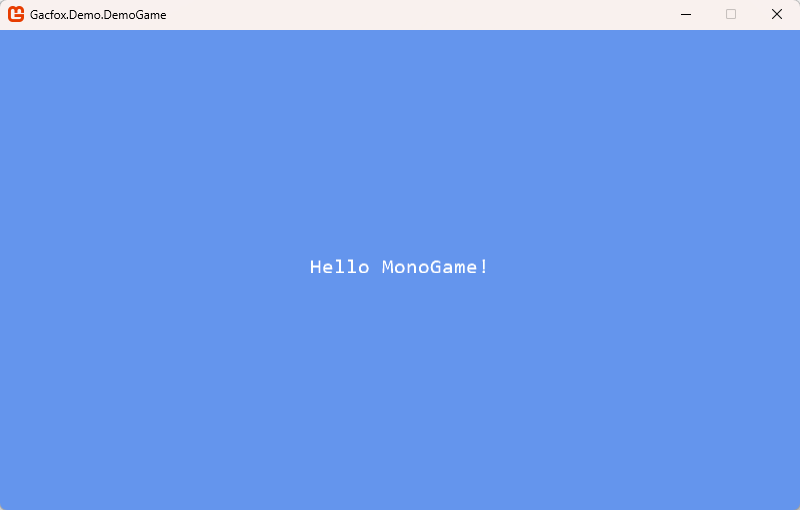
SpriteFont有一个MeasureString方法可用于测量一段文本渲染后的尺寸,返回值中,Vector2.X是该字符串在使用指定字体渲染时的总宽度,Vector2.Y是该字符串在使用指定字体渲染时的总高度,这个信息在做文本居中、气泡框自适应这类排版工作时非常有用,下面例子中我们实现屏幕居中绘制文本。
using Microsoft.Xna.Framework;
using Microsoft.Xna.Framework.Graphics;
using Microsoft.Xna.Framework.Input;

namespace Gacfox.Demo.DemoGame;

public class Game1 : Game
{
    private const string Text = "Hello MonoGame!";

    private GraphicsDeviceManager _graphics;
    private SpriteBatch _spriteBatch;
    private SpriteFont _font;
    private Vector2 _textPosition;

    public Game1()
    {
        _graphics = new GraphicsDeviceManager(this);
        Content.RootDirectory = "Content";
        IsMouseVisible = true;
    }

    protected override void Initialize()
    {
        base.Initialize();
    }

    protected override void LoadContent()
    {
        _spriteBatch = new SpriteBatch(GraphicsDevice);
        _font = Content.Load<SpriteFont>("Consolas");

        UpdateTextPosition();
    }

    private void UpdateTextPosition()
    {
        Vector2 size = _font.MeasureString(Text);
        _textPosition = new Vector2(
            (GraphicsDevice.Viewport.Width - size.X) / 2,
            (GraphicsDevice.Viewport.Height - size.Y) / 2);
    }

    protected override void Update(GameTime gameTime)
    {
        if (GamePad.GetState(PlayerIndex.One).Buttons.Back == ButtonState.Pressed || Keyboard.GetState().IsKeyDown(Keys.Escape))
        {
            Exit();
        }
        base.Update(gameTime);
    }

    protected override void Draw(GameTime gameTime)
    {
        GraphicsDevice.Clear(Color.CornflowerBlue);

        _spriteBatch.Begin();
        _spriteBatch.DrawString(_font, Text, _textPosition, Color.White);
        _spriteBatch.End();

        base.Draw(gameTime);
    }
}
代码中,由于我们的文字是固定的,因此size、_textPosition是没必要重复计算的,因此我们在LoadContent阶段就将其算好存储起来了,将其放在Draw阶段虽然也能运行,但显然这样做性能开销更高,不是一个好主意。
运行效果如下图所示。
注意:MeasureString方法是按烘焙时的字号计算的,如果你绘制时对文字做个缩放操作,计算结果需要乘以相同的缩放因数。
换行和自动换行
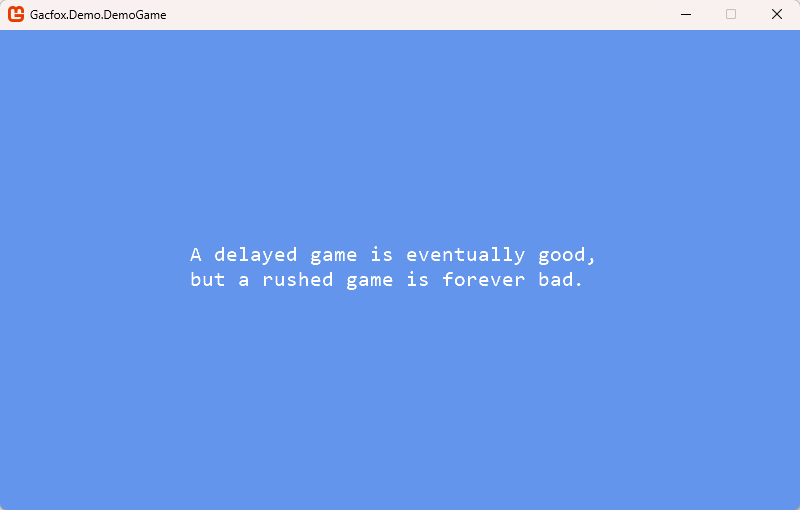
DrawString方法本身是支持\n换行符的,字符串中包含换行符时,渲染结果会换行显示。下面是一个例子。
string text = "A delayed game is eventually good, \nbut a rushed game is forever bad.";
运行结果如下图所示。
然而,对于类似将一段文本放在一个框里并超长自动折行的需求,手动插入换行符非常不友好,因为我们根本不知道要在哪插入换行符。好在MonoGame中,基于之前介绍的MeasureString方法,我们可以手动算出来要在哪折行。下面例子代码中,我们按英文习惯将文本基于空格拆词,并逐词计算宽度,超出则添加换行符折行。
public static string WrapText(SpriteFont font, string text, float maxWidth, float scale = 1.0f)
{
    if (scale <= 0) scale = 1.0f;

    float effectiveMaxWidth = maxWidth / scale;

    var words = text.Split(' ');
    var sb = new StringBuilder();
    float lineWidth = 0;
    float spaceWidth = font.MeasureString(" ").X;

    foreach (var word in words)
    {
        float wordWidth = font.MeasureString(word).X;

        if (lineWidth + wordWidth > effectiveMaxWidth)
        {
            sb.Append('\n');
            lineWidth = 0;
        }
        else if (lineWidth > 0)
        {
            sb.Append(' ');
            lineWidth += spaceWidth;
        }
        sb.Append(word);
        lineWidth += wordWidth;
    }
    return sb.ToString();
}
使用FontStashSharp渲染字体
FontStashSharp是一个非常流行且强大的跨图形框架.NET字体渲染库,它是C语言经典库FontStash的.NET移植版,专门用于处理TrueType和OpenType字体。FontStashSharp渲染字体时,字体文件无需通过MGCB内容管道处理,它支持按需将用到的字符渲染到纹理图集中,不会因为预先烘焙整个中文字库而导致内存爆炸。
如果你使用Visual Studio管理工程,那么可以直接搜索并添加FontStashSharp.MonoGame库,如果你使用dotnet命令行,可以执行以下命令安装。
dotnet add package FontStashSharp.MonoGame
我这里拷贝了一个字体文件simhei.ttf到MonoGame工程的Content/Fonts/simhei.ttf,不过由于它是运行时使用的,因此我们还得将该文件设置为复制到输出目录。
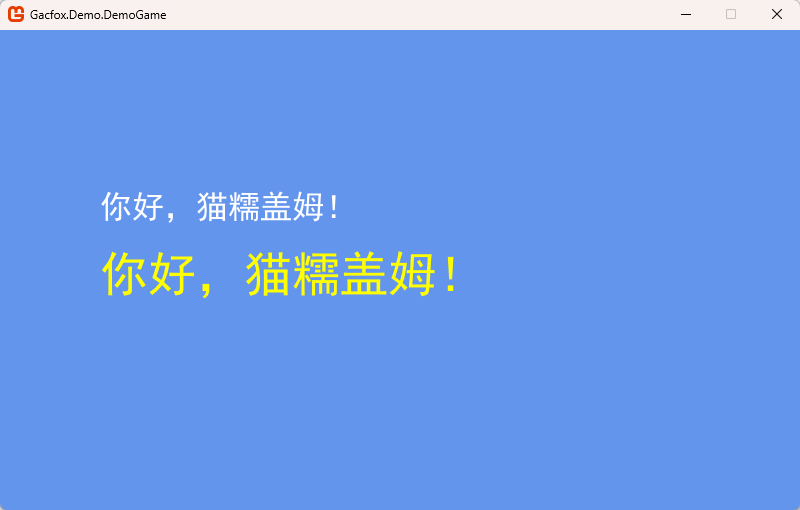
下面示例代码中,我们使用FontStashSharp加载字体文件,并绘制中文「你好,猫糯盖姆!」到屏幕上,代码中,我们还变化了字号和颜色,FontStashSharp都直接支持这些操作。
using System.IO;
using FontStashSharp;
using Microsoft.Xna.Framework;
using Microsoft.Xna.Framework.Graphics;
using Microsoft.Xna.Framework.Input;

namespace Gacfox.Demo.DemoGame;

public class Game1 : Game
{
    private const string Text = "你好,猫糯盖姆!";

    private GraphicsDeviceManager _graphics;
    private SpriteBatch _spriteBatch;
    private FontSystem _fontSystem;
    private SpriteFontBase _font32;
    private SpriteFontBase _font48;

    public Game1()
    {
        _graphics = new GraphicsDeviceManager(this);
        Content.RootDirectory = "Content";
        IsMouseVisible = true;
    }

    protected override void Initialize()
    {
        base.Initialize();
    }

    protected override void LoadContent()
    {
        _spriteBatch = new SpriteBatch(GraphicsDevice);

        _fontSystem = new FontSystem();
        _fontSystem.AddFont(File.ReadAllBytes(Path.Combine(Content.RootDirectory, "Fonts", "simhei.ttf")));

        _font32 = _fontSystem.GetFont(32);
        _font48 = _fontSystem.GetFont(48);
    }

    protected override void Update(GameTime gameTime)
    {
        if (GamePad.GetState(PlayerIndex.One).Buttons.Back == ButtonState.Pressed || Keyboard.GetState().IsKeyDown(Keys.Escape))
        {
            Exit();
        }
        base.Update(gameTime);
    }

    protected override void Draw(GameTime gameTime)
    {
        GraphicsDevice.Clear(Color.CornflowerBlue);

        _spriteBatch.Begin();
        _spriteBatch.DrawString(_font32, Text, new Vector2(100, 160), Color.White);
        _spriteBatch.DrawString(_font48, Text, new Vector2(100, 220), Color.Yellow);
        _spriteBatch.End();

        base.Draw(gameTime);
    }
}
运行效果如下图所示。
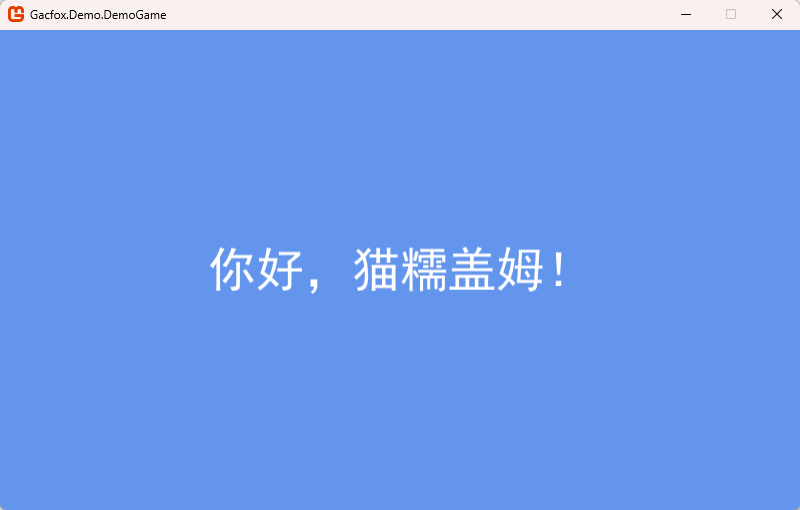
FontStashSharp同样支持计算文本宽度,下面例子代码实现了居中的中文渲染。
using System.IO;
using FontStashSharp;
using Microsoft.Xna.Framework;
using Microsoft.Xna.Framework.Graphics;
using Microsoft.Xna.Framework.Input;

namespace Gacfox.Demo.DemoGame;

public class Game1 : Game
{
    private const string Text = "你好,猫糯盖姆!";
    private const int FontSize = 48;

    private GraphicsDeviceManager _graphics;
    private SpriteBatch _spriteBatch;
    private FontSystem _fontSystem;
    private SpriteFontBase _font;
    private Vector2 _textPosition;

    public Game1()
    {
        _graphics = new GraphicsDeviceManager(this);
        Content.RootDirectory = "Content";
        IsMouseVisible = true;
    }

    protected override void Initialize()
    {
        base.Initialize();
    }

    protected override void LoadContent()
    {
        _spriteBatch = new SpriteBatch(GraphicsDevice);

        _fontSystem = new FontSystem();
        _fontSystem.AddFont(File.ReadAllBytes(Path.Combine(Content.RootDirectory, "Fonts", "simhei.ttf")));

        _font = _fontSystem.GetFont(FontSize);
        UpdateTextPosition();
    }

    private void UpdateTextPosition()
    {
        Vector2 size = _font.MeasureString(Text);
        _textPosition = new Vector2(
            (GraphicsDevice.Viewport.Width - size.X) / 2,
            (GraphicsDevice.Viewport.Height - size.Y) / 2);
    }

    protected override void Update(GameTime gameTime)
    {
        if (GamePad.GetState(PlayerIndex.One).Buttons.Back == ButtonState.Pressed || Keyboard.GetState().IsKeyDown(Keys.Escape))
        {
            Exit();
        }
        base.Update(gameTime);
    }

    protected override void Draw(GameTime gameTime)
    {
        GraphicsDevice.Clear(Color.CornflowerBlue);

        _spriteBatch.Begin();
        _spriteBatch.DrawString(_font, Text, _textPosition, Color.White);
        _spriteBatch.End();

        base.Draw(gameTime);
    }
}
运行效果如下。